Microsoft SNDS Monitoring Tool for Outlook and Hotmail

Connect your Microsoft SNDS access key and turn raw sending data into a clear daily view of how your sending IPs perform with Outlook.com and Hotmail. Track complaint rate, spam trap hits, filter results, sending volume, and status so you can investigate problems before they grow.

Trusted by Teams That Monitor Email Deliverability Worldwide

What SNDS Metrics Show About Your Sending IPs

Microsoft SNDS gives IP owners useful information about email traffic and filtering signals. EmailConsul organizes those metrics into readable reports and historical trends, helping you find the IP, time period, and signal that needs attention.

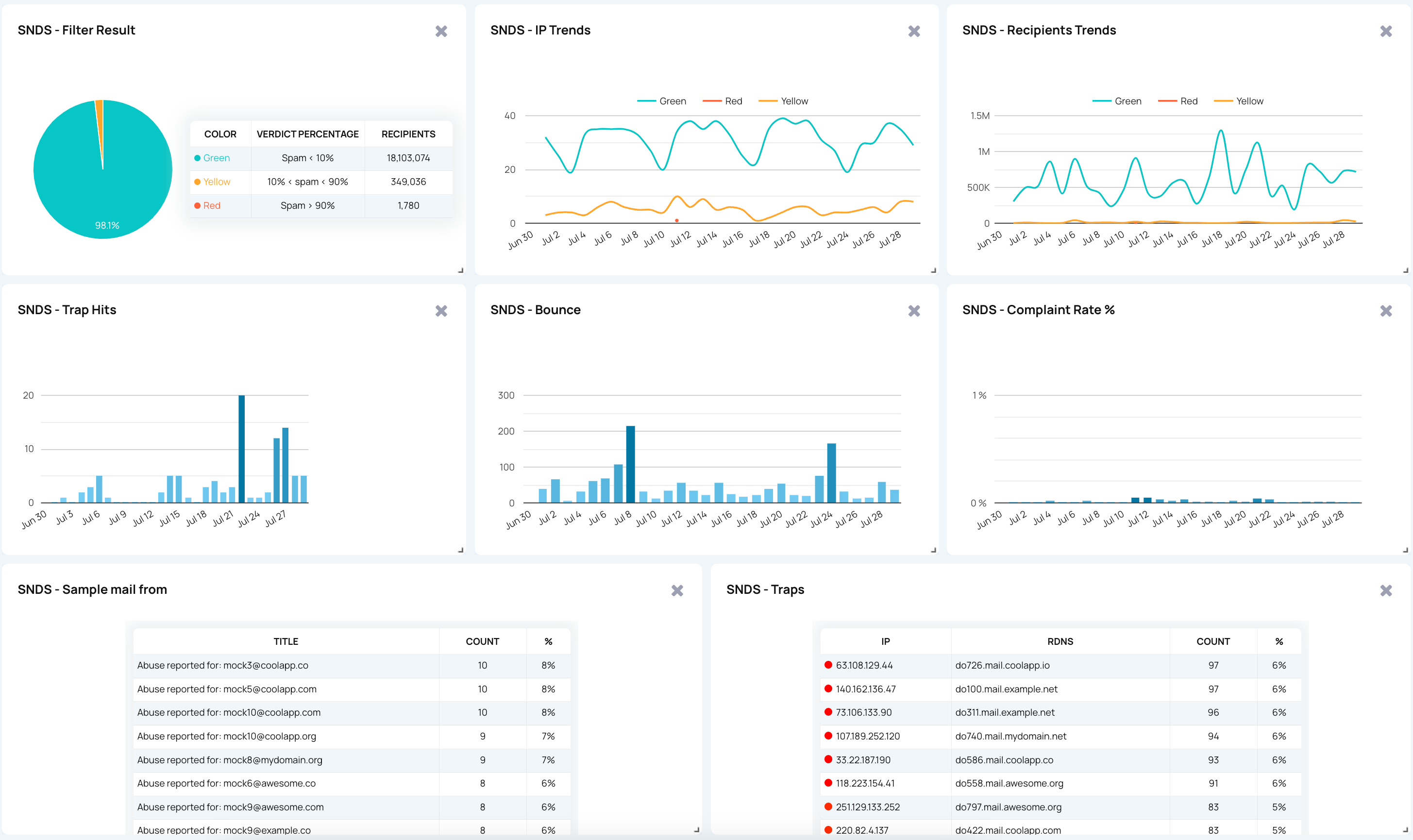
  • Microsoft SNDS dashboard showing sending IP metrics and historical trends

    Activity, Volume, and Message Recipients

    Review email traffic by time period, including RCPT commands, DATA commands, and message recipients. Differences between these metrics can help surface unusual recipient activity, changing sending patterns, or a volume issue worth investigating.

  • SNDS IP data report showing complaint rates, spam trap hits, filter results, volume, and status

    Spam Complaints, Trap Hits, and Filter Results

    See spam complaint rates, spam trap hits, and filter results alongside the relevant IP and date range. These signals help you understand when Microsoft is filtering more of your messages or when sender reputation needs a closer look. For more context, read why low complaint rates do not always mean your sending is safe.

  • Email deliverability workflow connecting SNDS data with historical traffic trends

    Status, Traffic Patterns, and Historical Trends

    Track status, traffic, and historical results over time instead of reviewing each export in isolation. Compare changes before and after a campaign, infrastructure update, list import, or change in sending behavior. When traffic sources are mixed together, it also helps to separate different sending streams.

From Access Key to Actionable Dashboards

EmailConsul removes the manual work of switching between SNDS pages, CSV exports, and spreadsheets. Add your access key, review the information in one dashboard, and share clear reports with the users who manage email delivery.

Connect Your Account

Create automated access in SNDS, copy the generated key, and add it to EmailConsul. Data collection starts after the connection is added. When you need older information, use the historical date check to retrieve a previous period. Follow the step-by-step SNDS setup instructions when connecting the account.

Review Trends and Detailed Reports

Use the dashboard for a quick overview, then open the IP Status and IP Data views to review detailed metrics, comments, volume, filter results, and historical changes for individual sending IPs.

Act on Alerts Before Performance Drops

Create alerts around the signals that matter to your team, such as status changes, rising spam rates, trap hits, or unusual traffic. Notifications help the right users investigate while the change is still recent.

Stay Ahead of Email Delivery Problems

Do not wait until customers report missing messages or campaign performance drops. Monitor Microsoft sending health alongside authentication, blacklist signals, sender reputation, and inbox placement from one clear interface.

SNDS IP data report showing complaint rates, spam trap hits, filter results, volume, and status

Investigate Outlook and Hotmail Delivery Risks

A concerning SNDS result is a clue, not a final answer. Microsoft signals are more useful when you can compare them with the rest of your email data.


EmailConsul brings postmaster monitoring, sender reputation, authentication, domain and IP status, reports, alerts, and AI analysis into one interface, so teams can see whether a problem is isolated or part of a broader deliverability issue.

Blacklist and DNSBL Status

When a sending IP shows filtering or a declining status, use the free IP blacklist checker to check IP blacklist status and DNSBL matches. If the IP is listed, fix the root cause before requesting removal, then use IP & Domain Reputation Monitoring to follow listing changes and reputation events over time.

Actual Inbox Placement

SNDS can reveal Microsoft-side reputation and filtering signals, but it cannot prove where every campaign lands. Run a free inbox placement test to see whether your messages reach the inbox, spam folder, promotions tab, or remain unreceived across Outlook, Gmail, Yahoo, and other mailbox providers. Learn how seedlisting tests work before using placement results in your investigation.

Compare Provider-Level Signals

Compare Microsoft data with Google Postmaster Monitoring to understand whether a reputation issue affects only Outlook and Hotmail recipients or appears across Gmail and Google Workspace as well.

Connect Reputation With Sender Identity

Use DMARC Monitoring to identify the IPs, domains, subdomains, and sending services sending on your behalf. Compare that sender information with SNDS trends when investigating failed authentication, unfamiliar traffic, complaint spikes, or reputation changes. This also helps clarify domain reputation versus IP reputation.

Keep an Operational Overview

Instead of opening separate dashboards, reports, and provider portals, use EmailConsul to track performance, reputation, authentication, security signals, and notifications from one place. This makes it easier to prioritize the issues that need action first.


SNDS FAQ

What do RCPT commands, DATA commands, and message recipients mean in an SNDS report?

These metrics describe different stages of sending activity. RCPT commands reflect recipient-level delivery requests, DATA commands reflect message-content transmission, and message recipients show recipient volume. Review them together over time to spot unusual traffic, recipient-quality issues, or sending-pattern changes.

What should I do when filter results or status changes?

Start by checking whether the change is isolated to one sending IP, date range, campaign, or traffic source. Then review spam complaints, trap hits, authentication, blacklist status, list quality, and recent volume changes before making a corrective decision.

Can SNDS show exactly why an email lands in the spam folder?

No. SNDS provides useful Microsoft IP reputation and filtering signals, but it does not provide a complete explanation for every individual message. Use a free inbox placement test to validate where a specific campaign lands across mailbox providers.

Does SNDS cover all Microsoft mailbox traffic?

SNDS should be treated as a signal for Microsoft consumer mailbox traffic, including Outlook.com and Hotmail. Use it alongside inbox placement testing and other postmaster data when you need a broader deliverability view.

How do I connect an SNDS access key to EmailConsul?

Create automated access in SNDS, copy the key portion from the generated URL, and add it in EmailConsul settings. After the key is connected, EmailConsul can retrieve current data and you can request historical dates when needed.

Why should I compare SNDS data with DMARC reports?

DMARC reports help identify which IPs, domains, subdomains, and sending services use your domain. Comparing that information with SNDS trends helps connect a Microsoft reputation or filtering issue with the sender source that may need attention.

Can I monitor multiple sending IPs?

Yes, provided your SNDS account has access to those IPs. Monitoring multiple IPs together makes it easier to compare traffic, complaints, filter results, status, and reputation patterns across your sending infrastructure.

How do IP blacklist status and SNDS data work together?

A clean blacklist result does not guarantee that Microsoft will place your messages in the inbox, and an SNDS issue does not automatically mean the IP is listed. Review both signals together with authentication, sender reputation, traffic patterns, and inbox placement results.

When should I investigate spam trap hits?

Investigate promptly when trap hits appear or increase. Review list acquisition, suppression processes, inactive recipients, bounced addresses, recent imports, sending sources, and any changes in campaign volume or targeting.

Build Better Email Campaigns with Good Email Deliverability Practices

Connect Microsoft sender signals with authentication, reputation, blacklist status, and inbox placement so your team can find delivery risks before they spread.